
Mastering Windows 2016 Server
- Dans Kupcs
- Jun 14, 2024
- 8 min read

Updated: Jun 16, 2024
Setting up a server can be a daunting task, especially for those who are new to the world of IT. However, with the right guidance and resources, it can be a manageable and rewarding experience. That's where Server Info comes in with its easy-to-follow tutorials on setting up Microsoft Windows 2016 Server.

Installation and configuration of active directory and DNS services.


Creation of Organizational Unit (OU)
To facilitate operations with users and computers, already in MS Windows 2000 Server a section was built, as the "Organizational Unit", which allows the AD administrator to create on his own a pleasant and convenient structure for registering users and computers. In addition, it simplifies the management and distribution of services such as user policies.
Creating an OU system on a server according to a given structure - an example:
OU_OT
Teachers
Students
Employees
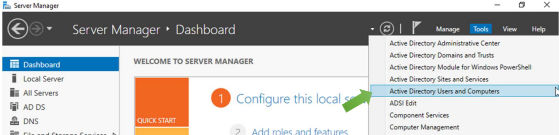


User formation (User)
Configuring Microsoft Windows 2016 Server users and computers occurs when you start the tool – "Active directory Users and Computers". The menu has 6 sections embedded in them, into which new users are placed by default, as well as users necessary for the work of the system. "Builtin section". As a rule, the addition of new users already occurs within the framework of the structure that you have created. The user is added to the specific OU and will automatically be subject to all policies established within that OU. This makes the work of Administrators easier, since there is no possibility that the user does not have anything allocated or added, all this happens automatically by including the user in one of the OUs. The user needs to be created only once and in cases where the user moves to work in another structure of the company he is simply dragged ("drag-and-drop") to another OU. When adding a user to the AD, it is necessary to fill out a simple form in which the user's data, the user's logon name is recorded in the system, and the user's e-mail address and mailbox are automatically generated, which works only in cases where the Microsoft Exchange server that provides e-mail exchange is triggered in the system. Additionally, a password and the procedure for its use are determined. After adding a user, the user account can be replenished with a larger range of information. It should be remembered that all information about the user will be available to other AD users.This is convenient because there is no need for additional data systems (eg. Telephone book).
Create new users according to the following table:
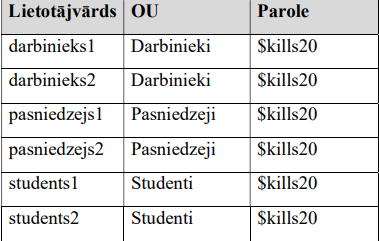

After adding a user, the user account can be replenished with a larger range of information,
By clicking on the user, in the Properties section.
Creating user groups and configuring membership to the group (GROUP)
when the number of users reaches the limit, when they are difficult to monitor and manage, you can form user groups that are hierarchically located between the OU and the user. Groups aren't much different from OUs in their capabilities, and you can also add user policies to them.
Additionally, groups can be used in the security section of shared resources – when you assign or remove some rights to a group, the same rights apply to all users in the group. A user can be included in several groups.
It should be remembered that denial (deny) will always be higher than permit. For example - one group is allowed to access some resource, while another is barred from accessing this resource and the user is registered in both groups, then the user will be denied access to the resource.
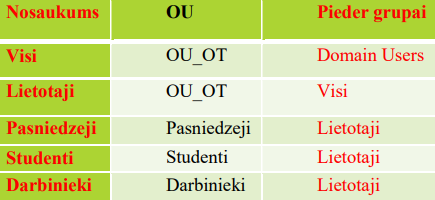
Create new user groups according to the following table:


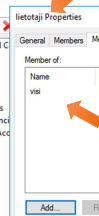
Configure group affiliation after the following table:


(Group Policy Management)
One of the primary actions that must be taken when starting to make changes to the policy is to determine what this policy will apply to the computer or user. And only after that it is necessary to start with the policy. Policies can be used not only from your domain, but also from another "trusted" domain. This option exists, but it's not a good tone to use it. If you need to get a policy from another domain, you can copy and copy the policy to your policy objects section.

All policies are created and stored in the "Group policy objects" section. The "good tone" of policymaking dictates that for each action (Directory porting, user restrictions, computer access restrictions) a separate policy is created, this allows the server administrator to promptly respond to changes and better monitor the operation of policies. By default, two policies have been created on the Microsoft server that apply to the domain and the domain controller. We do not recommend that you make material changes to these policies because they are associated with the entire domain and an error or loophole in this policy may stop the entire domain from working.
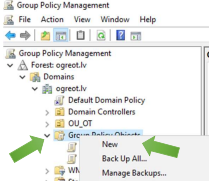
Group policy making.
Example: do not allow domain users from using the command line.


The policy starts working only when it is added to an object – user, OU, or domain. Therefore, an administrator can create multiple policies, but run them only as needed. Adding a policy to an object is called linking.


Dynamic Host Configuration Protocol Service installation and configuration (DHCP)
One of the essential services of a computer network is the "Dynamic Host Configuration Protocol" (DHCP) service, the main task of which is the distribution of network settings to the participants of the computer network. The use of DHCP greatly facilitates the switching on of new network equipment in the computer network. It also resolves IP address conflicts that can be manually configured by configuring computer network settings. The DHCP service is not installed automatically, you need to select it and install it yourself.
DHCP Service installation.

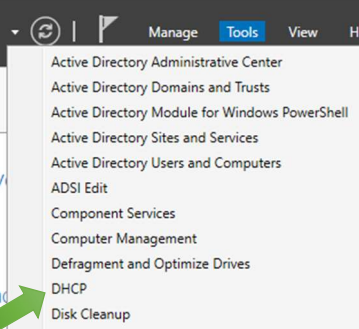
By default, the DHCP service is not started. There is not a single entry in it. In order for the DHCP service to work it needs to predict the IP address area from which it will share the IP addresses of clients. The DHCP address area is called – "scope". To create a new address area, you need to click the left mouse button on the server and select the "New scope" setting. The master's window opens.
We give the address area a name. This is because DHCP can have multiple address areas that are easier to manage if they are given clear names rather than IP addresses.

We determine the area of addresses to be shared and the network mask. We assign IP addresses to clients from the LAN IP address subnet.

The time of operation of the address, or the time for which the computer can use the resulting address. This does not mean that after a certain period of time the address is changed, but it determines that the computer after some time must misunderstand the DHCP service about the possibility of using the address. In cases where the computer network is not large and the address area is large enough (usually the number of computers + 10 addresses), then this time can be quite large 10 -20 days. The time setting is relevant if the number of computers on the computer network slightly exceeds the number of addresses, but is not used at the same time, and then it is necessary that the computer that does not use the resources of the computer network quickly abandons the IP address and transfers it to DHCP. IP address assignment time: 4 hours.
In order for a computer or other device to work successfully in a computer network, not only the IP address of the computer is required, but also additional information – the gateway address.

DNS server address.

And if necessary, WINS server address.
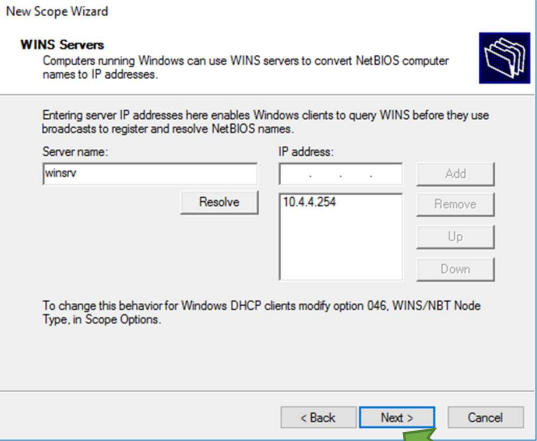
To start the DHCP server in the active directory, it is necessary to authorize it to operate within the active directory. To do this you need to right-click on the DHCP server , in the DHCP configuration window, on the select option "Authorize"

Reserve the IP address available in the DHCP server's IP address pool for the device.


IIS service. Install and configure an IIS service
What is a web server?A web server is the most popular of the server types. Basically, a web server is a combination of a computer and special software that, at the request of the user's computer, delivers the contents of the website it needs. Basically, typing into your internet browser some definite address as www.google.com, The browser sends a request on the Internet, which should find and return the website you entered. The web server (both computer and server software) processes this request and delivers the contents of the requested website back to the user. How does it work? Once you in your web browser (Chrome, Firefox, Internet Explore, etc.) enter the address of a website, for example www.wix.com or click on the URL address of a website while on another website, your browser converts the domain name of the website into an IP address via the Internet through a DNS server (domain name server), then finds and connects to the web server on which the ovt.lv website is located with the specific IP address. The web server contains all the necessary data, files and scripts so that wix.com website can be displayed on your computer. Once the connection is made, the Internet browser sends a request to the web server based on the data of the specific website, and the web server sends the data back to your browser using the HTTP protocol. Next, the browser converts the received files into a format that it understands and outputs to the screen wix.com home page with all its contents. In this way, the web server can process requests and send website data simultaneously to several client computers. If such parallel requests become too many, the web server may become slow and unable to send data to client computers at a sufficient speed. In such cases, it is necessary to review whether your existing server needs any technical improvements, or whether there is a need to purchase or rent a new web server. The most popular web server software. In order for the website files to be accessed by other users on the Internet, any computer connected to the Internet and on which the website is located needs one of the web server software. The most popular web server software is Apache HTTP server. Millions of websites around the world use Apache's web server software. Apache is open source software, available on the most popular operating systems such as Microsoft Windows, Linux, OS X and others. Behind the apache servers is followed by the Microsoft IIS (Internet Information Services) web server software. Like Apache, IIS has been developed for quite some time and is the second most used web server software. Together with IIS, Microsoft offers a variety of additional tools that make it easy to create, administer, and maintain web pages, systems, and databases. The third most popular web server software at the moment is Nginx. Like Apache, this is open source software and provides high performance and is able to handle a large number of requests, as well as being stable and consuming few server resources. Currently, Nginx server software is used by more than 12% of all internet websites.
Examples of Web server programs:
Apache HTTP Server no Apache Software Foundation
Internet Information Server (IIS) no Microsoft
Zeus Web Server no Zeus Technology
Sun ONE no Sun Microsystems
Lighttpd
Nginx


Result.

One of the key aspects of setting up a Windows 2016 Server is understanding the initial setup steps. From configuring the server's network settings to setting up user accounts and permissions, each step plays a crucial role in ensuring the server functions smoothly and securely. Another important aspect to consider is server security. Server Info provides detailed tutorials on installing and configuring security features such as firewalls, antivirus software, and user authentication mechanisms. By following these guidelines, you can protect your server from potential cyber threats and ensure the safety of your data. Furthermore, Server Info also covers essential topics such as server maintenance and troubleshooting. Learning how to perform regular maintenance tasks and troubleshoot common server issues can help you keep your server running efficiently and minimize downtime. In conclusion, mastering Windows 2016 Server setup is a valuable skill that can benefit both individuals and businesses. By leveraging the resources provided by Server Info, you can gain the knowledge and confidence to set up and maintain a Windows server effectively. Whether you are new to server administration or looking to enhance your skills, Server Info's user-friendly approach makes learning server setup an accessible and rewarding experience.


Comments